Instructions
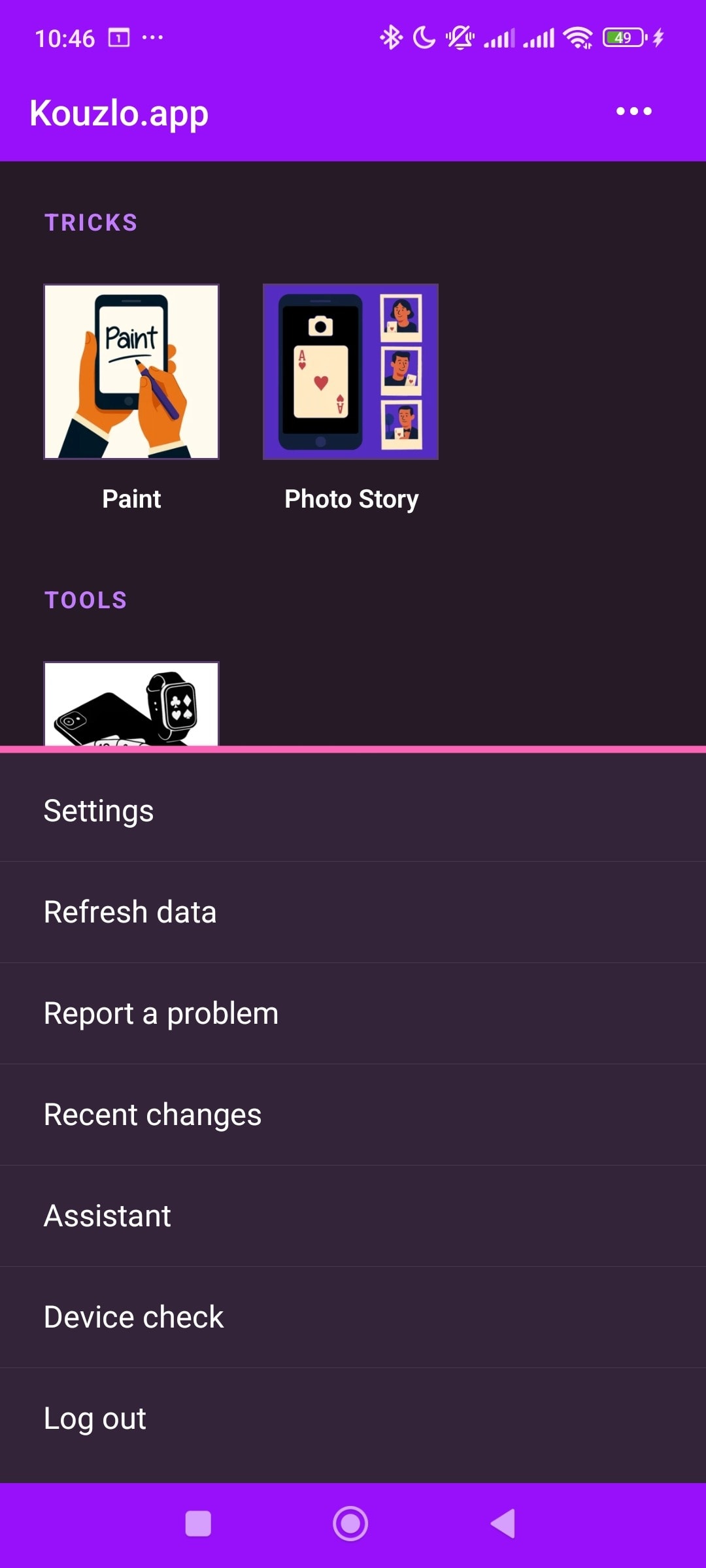
These settings are shared by all tricks: where the result goes, the second phone, the microphone and the voice. To open them, tap “⋯” in the top right corner of the home screen and choose “Settings”.
1Watches and fitness bands
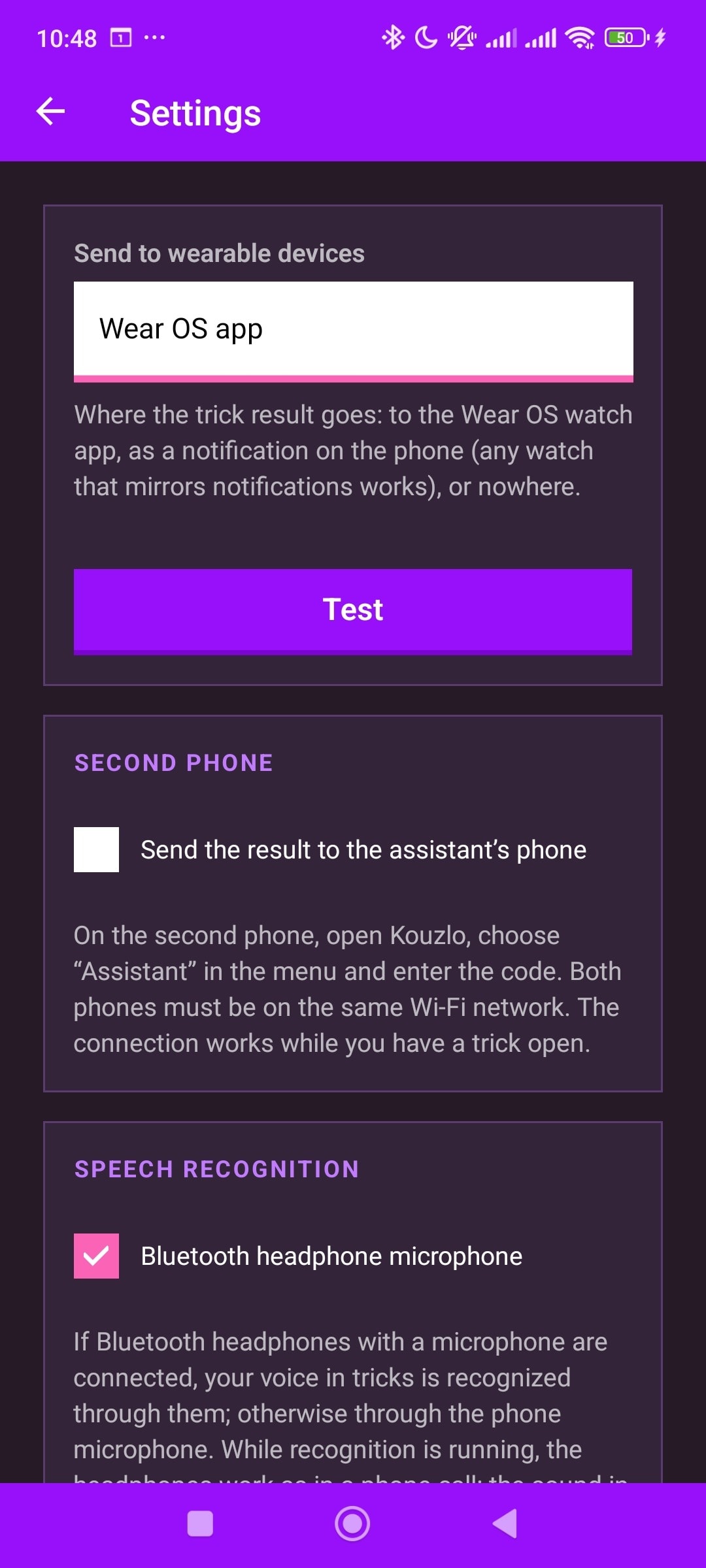
Send to wearable devices
Where the trick sends the result. The options:
“Don’t send”: the result goes neither to the watch nor to notifications.
“Wear OS app”, on iPhone “Apple Watch app”. The result goes to the Kouzlo.app app on the watch. How to install it: see the Installation guide.
“Regular notifications”: the result arrives as a notification from Kouzlo.app. Any watch or fitness band that receives notifications from the phone will show it.
The “Test” button sends a random number to the watch the selected way and tells you whether it got through.
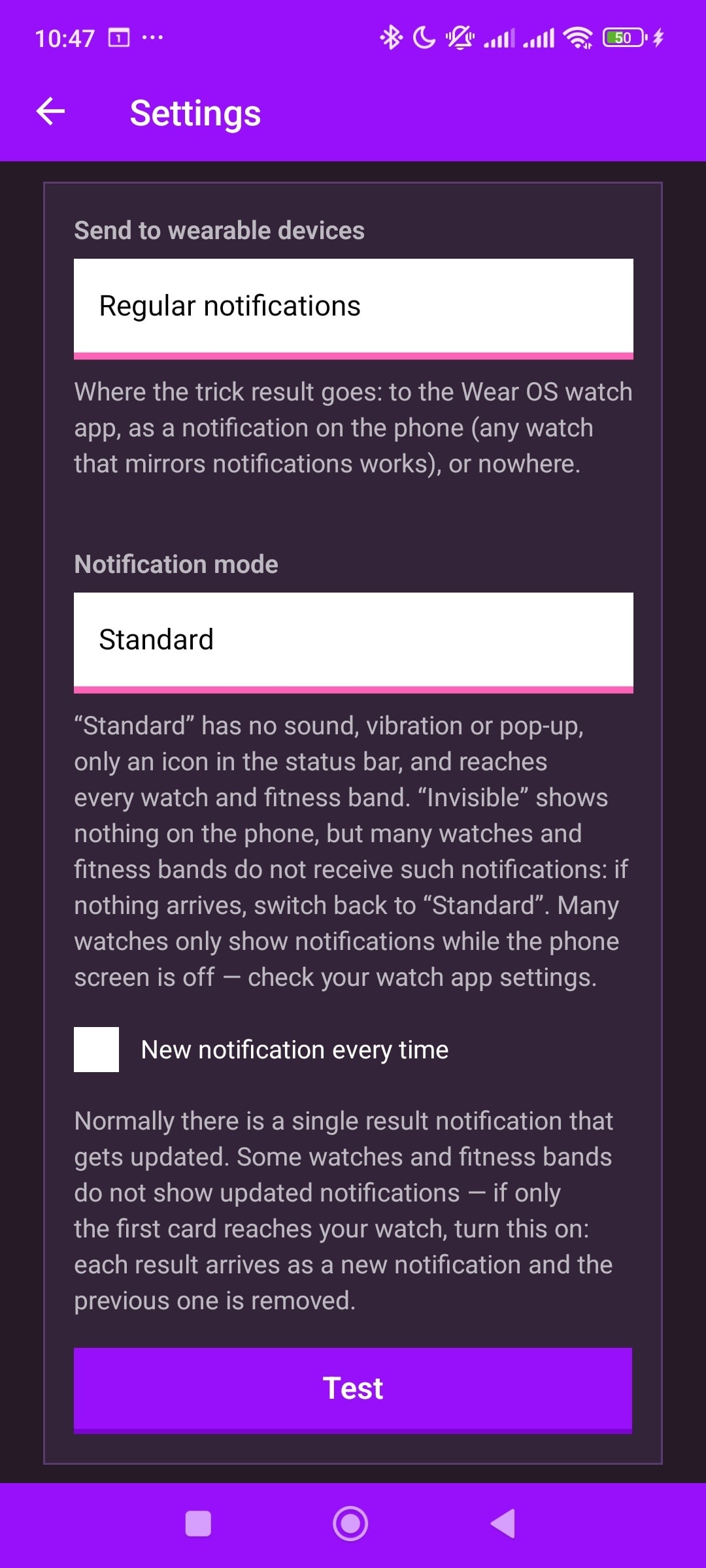
Notification mode
Appears on Android when “Regular notifications” is selected. The options:
“Standard”: the phone shows only an icon in the status bar.
“Invisible”: the phone shows nothing.
Start with “Standard”: every watch and fitness band receives it. Choose “Invisible” only if you have checked that your watch receives it.
New notification every time
Turn it on if the watch receives only the first result and not the following ones.
If notifications from Kouzlo.app are turned off in the system, instead of the “Test” button you will see “Notifications are turned off in system settings” and a “Go to settings” button.
2Second phone
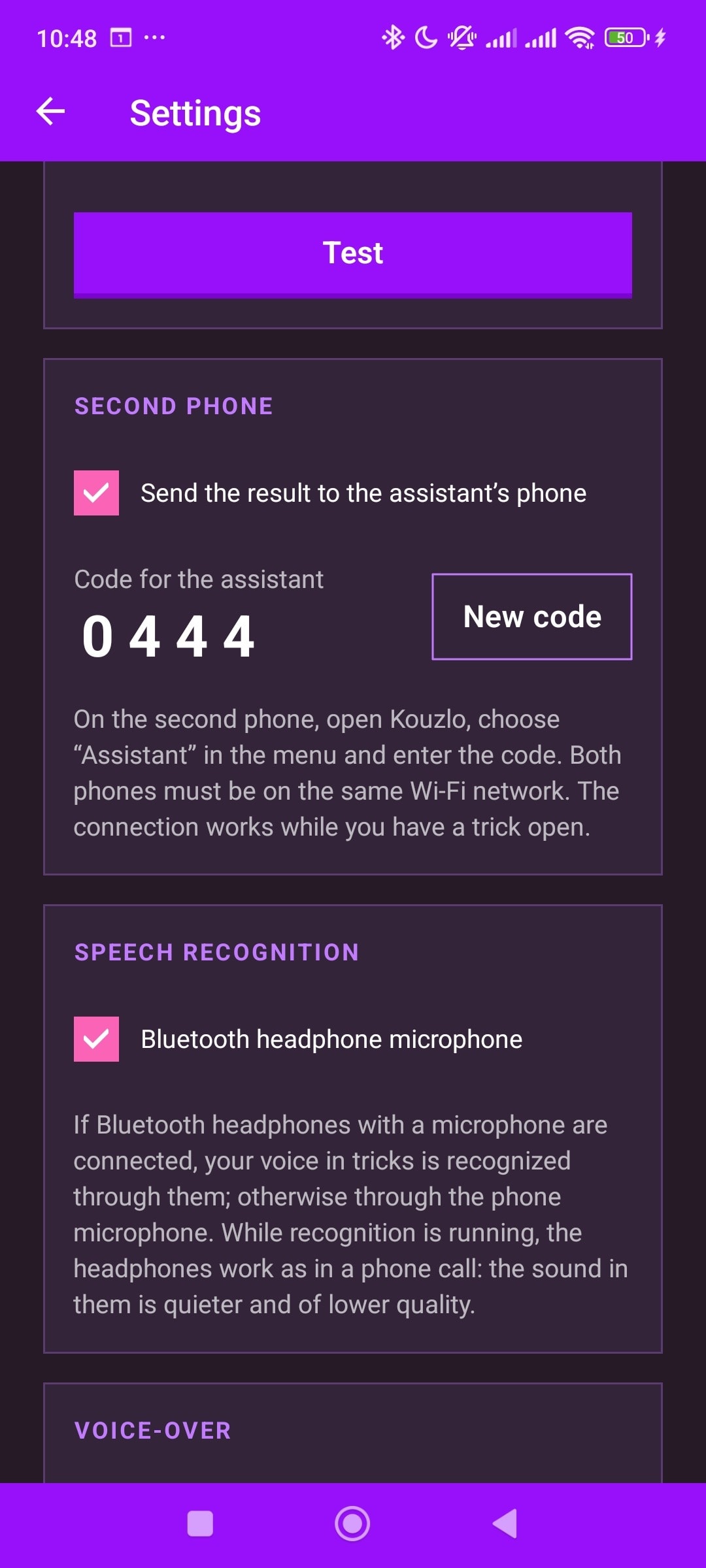
Send the result to the assistant’s phone
Turn it on if you perform the trick with an assistant or a second phone. A 4-digit code appears: it is entered on the second phone.
On iPhone, when you turn it on, the system asks for access to the local network. Allow it, otherwise the second phone won’t connect.
New code
Changes the code. After that, tap “Change code” on the second phone and enter the new one.
How to connect the second phone: see Assistant mode.
3Speech recognition
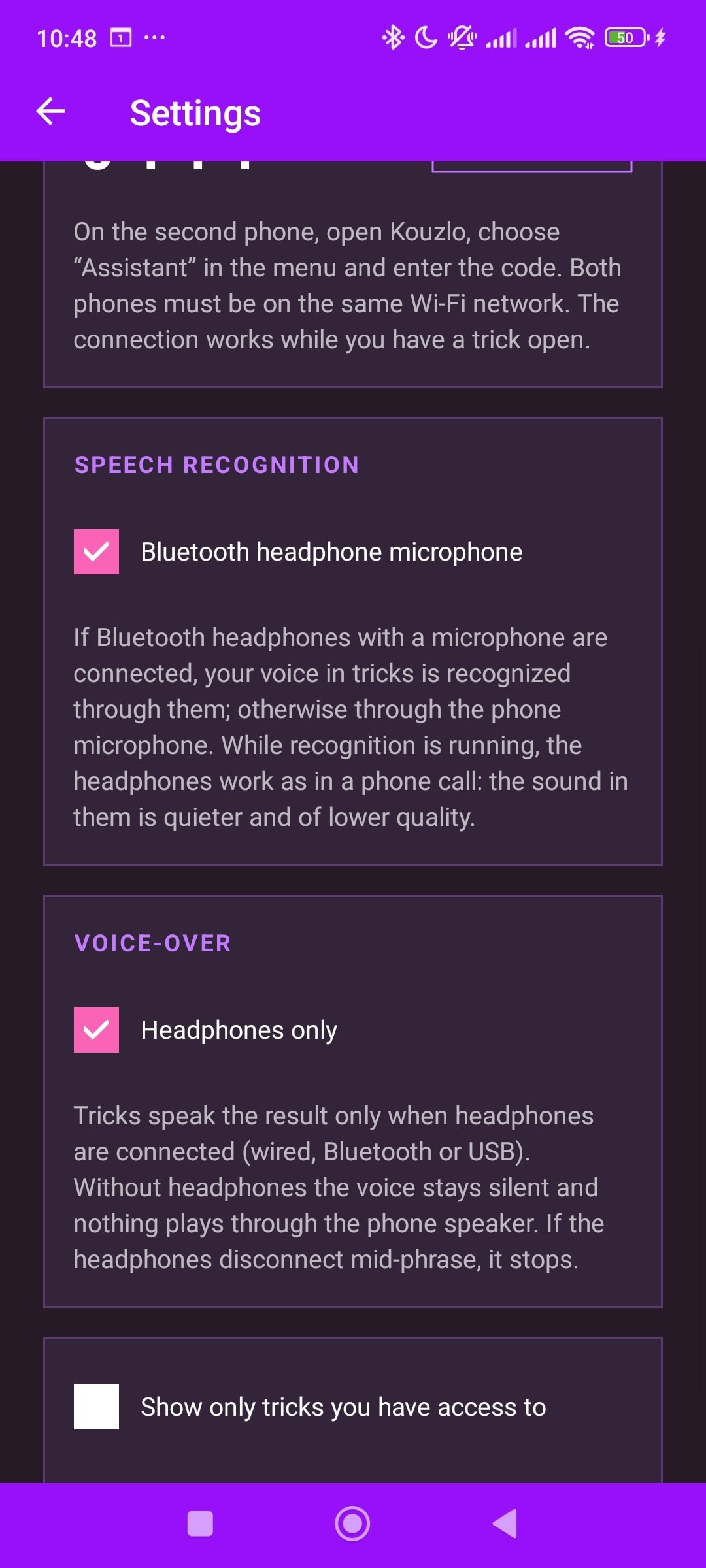
Bluetooth headphone microphone
Off by default. If you turn it on, speech in Paint and Photo Story is recognized through the microphone of the connected Bluetooth headphones. This is handy if the phone is far from you or the room is noisy. If no headphones are connected, the phone’s microphone is used. A wired headset with a microphone works even without this setting.
4Voice-over
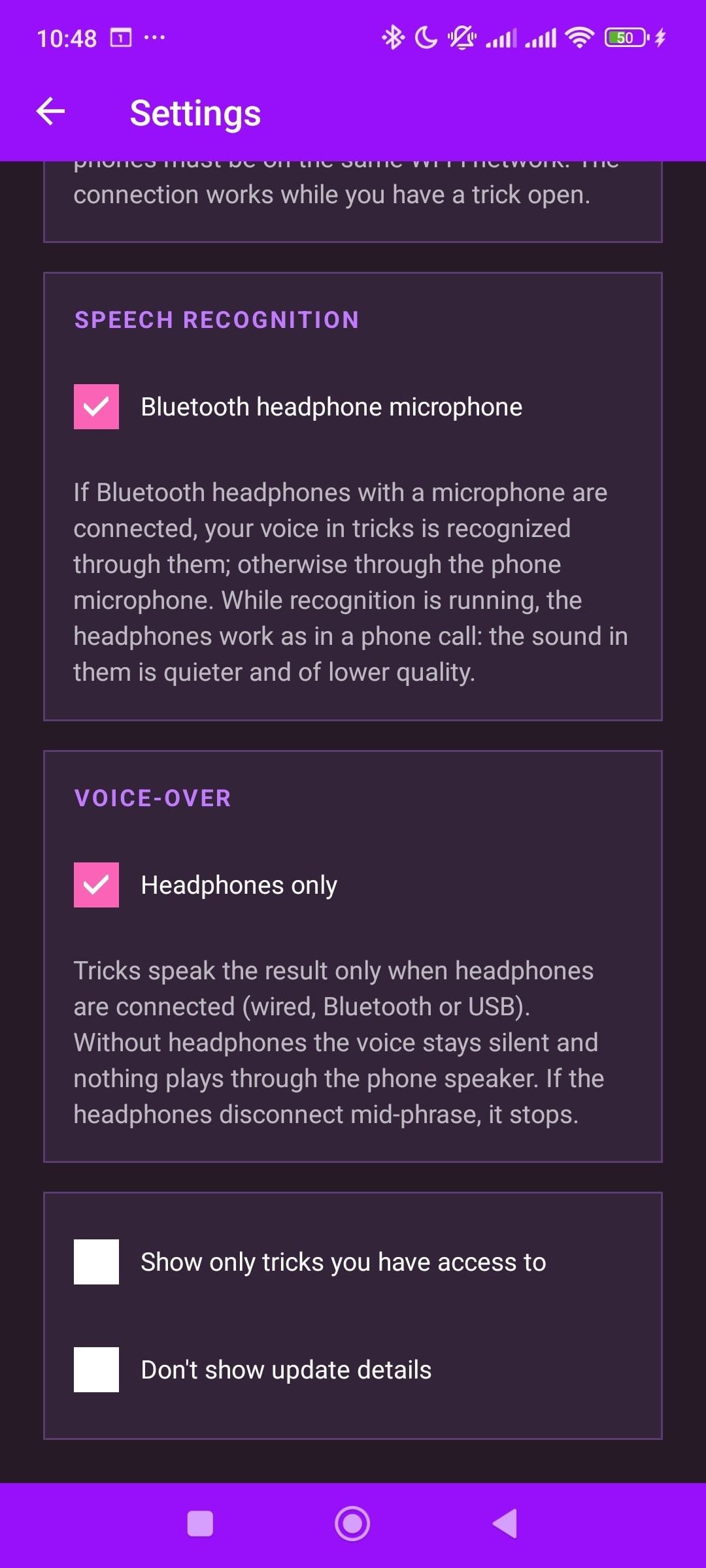
Headphones only
Off by default. If you turn it on, tricks say the result only when headphones are connected: wired, Bluetooth or USB. Without headphones the voice stays silent, and the audience hears nothing from the phone’s speaker.
A Bluetooth speaker also counts as headphones. Make sure the phone isn’t connected to the venue’s speaker.
You can check this with the “Test pronunciation” button in the trick’s settings: without headphones you will see a message that they aren’t connected.
5Home screen
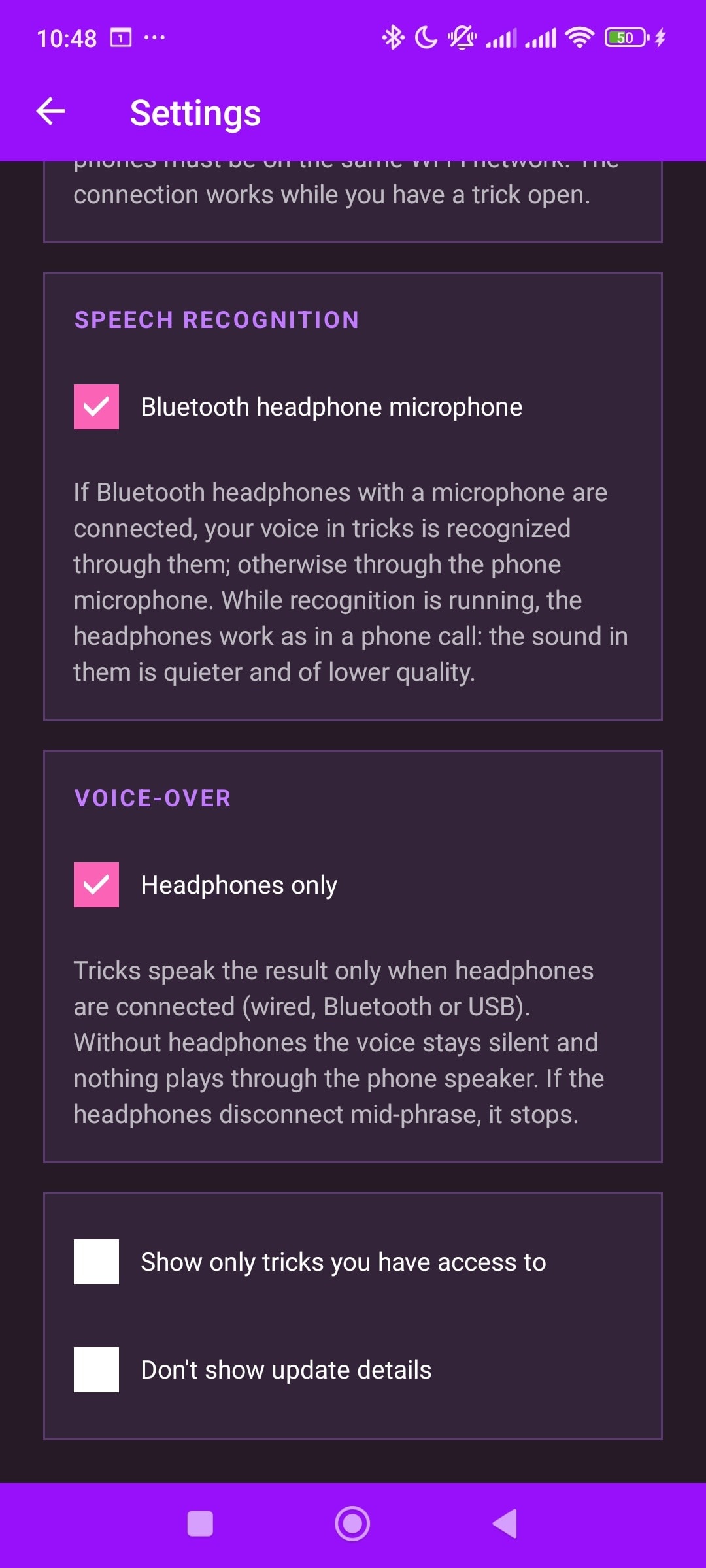
Show only tricks you have access to
Hides the tricks you haven’t bought from the list. A “Hidden tricks” button with their number appears in the list: it shows them for a while without changing the setting.
Don’t show update details
After an update, the app shows a “What’s new” window. If you turn this on, the window won’t appear again. The list of changes is always available in the “⋯” menu on the home screen → “Recent changes”.