Instructions
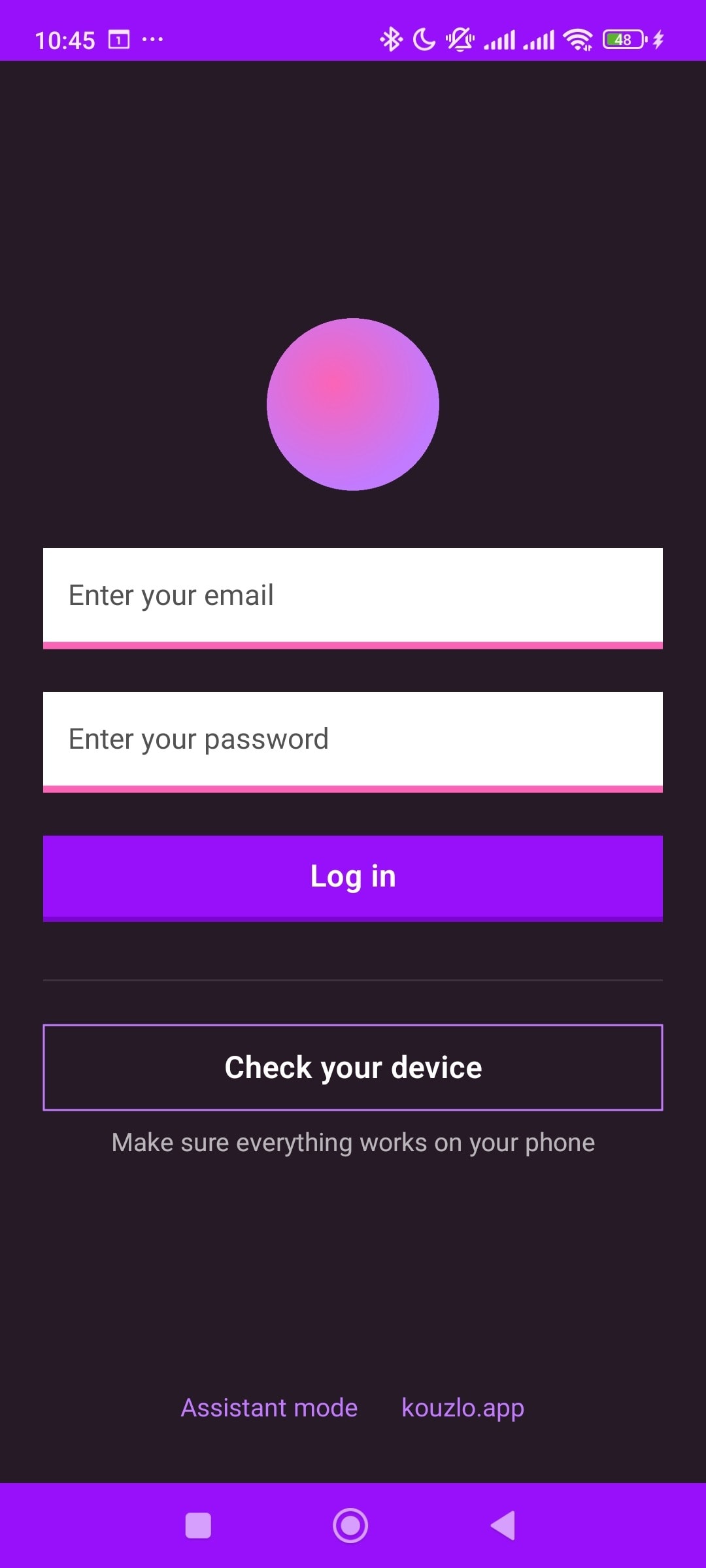
Kouzlo.app has a device check that shows whether your phone is suitable for the tricks. You can run it before buying, no account needed.
If you haven’t logged in, tap “Check your device”.
If you have, tap “⋯” in the top right corner of the home screen and choose “Device check”.
1Quick check
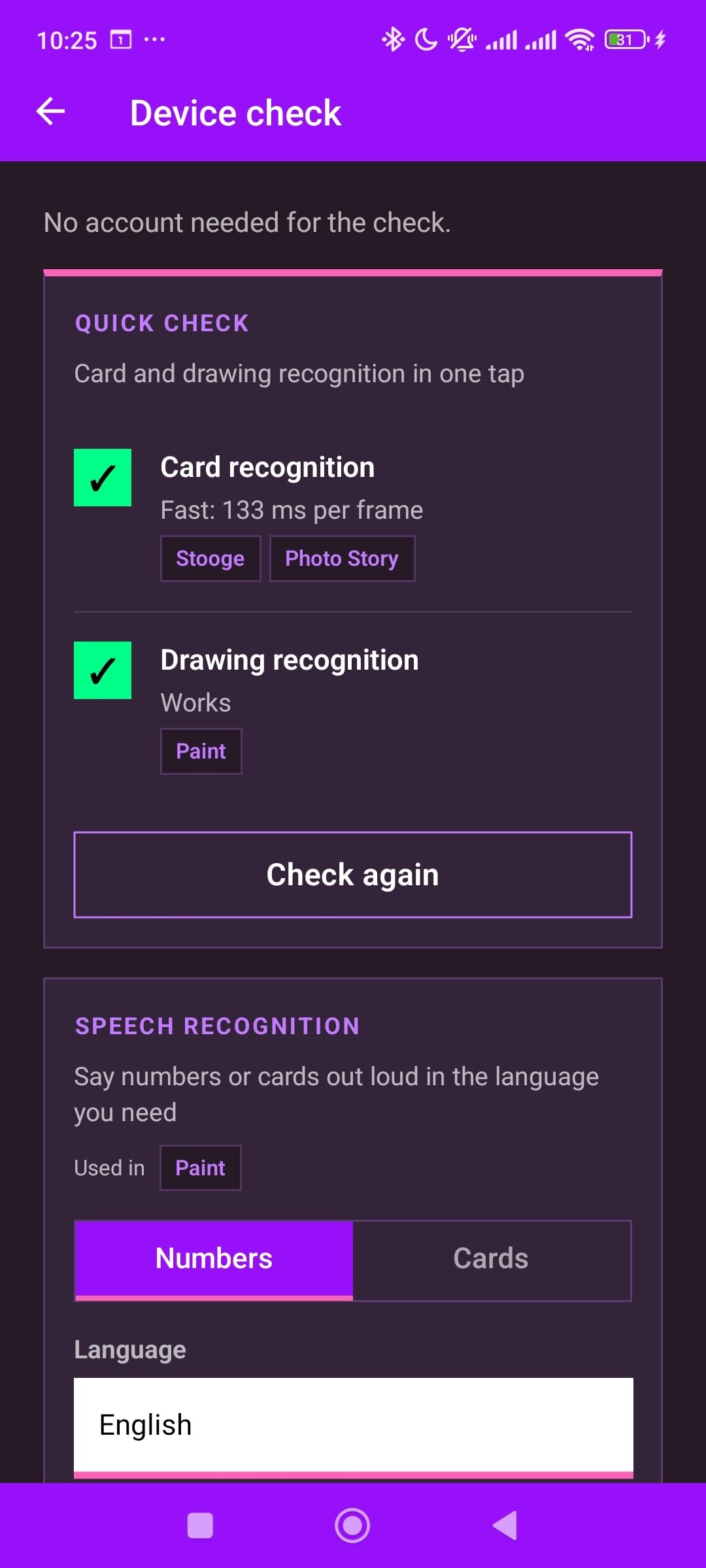
Tap “Start check”. The phone checks card recognition and drawing recognition. You need an internet connection: the drawing recognition files are downloaded during the first check.
Card recognition
Needed for Stooge and Photo Story.
“Fast”: everything is fine.
“Works with a delay”: the tricks work, but hold the card in front of the camera a little longer.
“Too slow”: in Photo Story this is barely noticeable, but Stooge will recognize cards much more slowly.
Drawing recognition
Needed for Paint. “Works”: everything is fine. If you see “Could not download files”, check your internet connection and tap “Check again”.
2Speech recognition
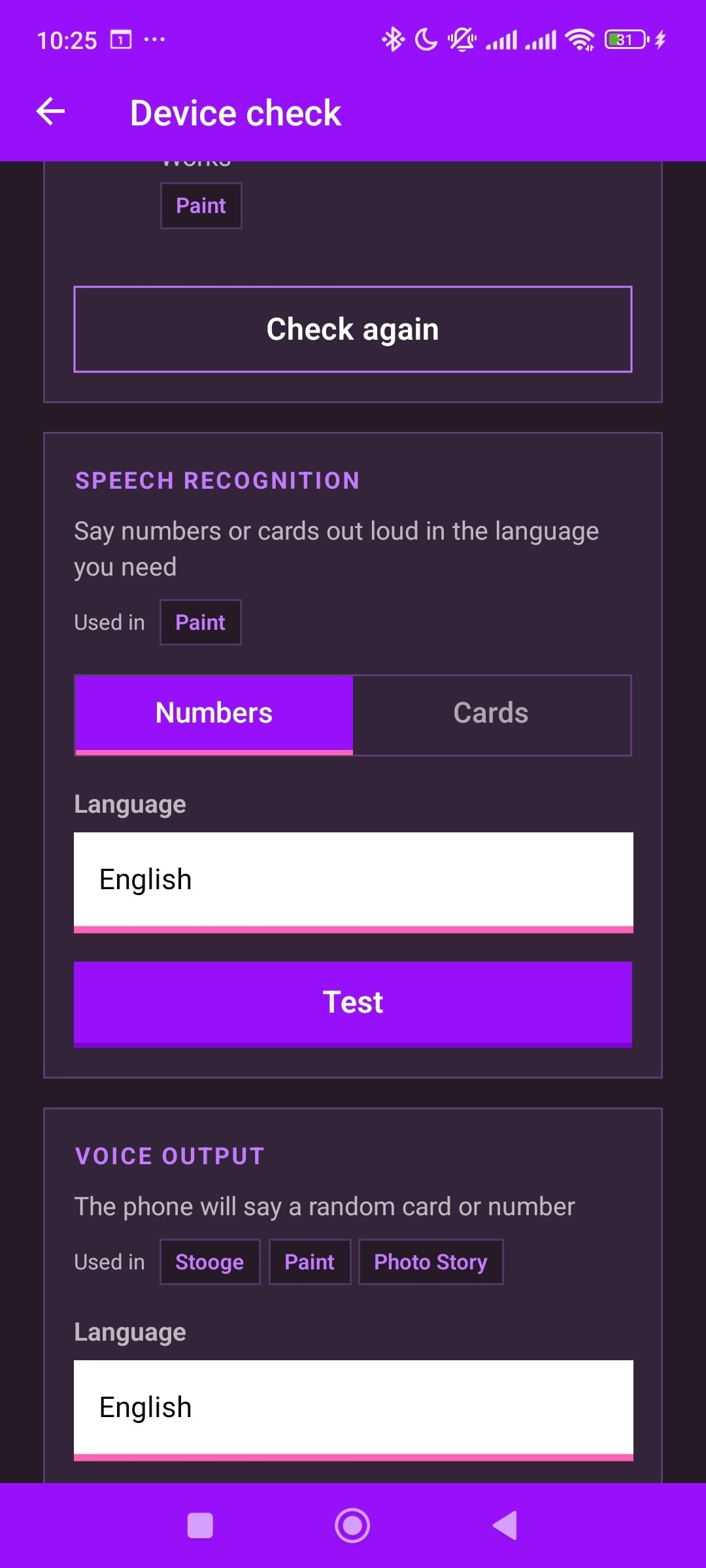
Needed if you name a number or a card out loud.
Choose “Numbers” for Paint or “Cards” for Photo Story.
Choose the language you will speak.
Tap “Test”. The first time you check a language, its recognition files are downloaded, so you need an internet connection.
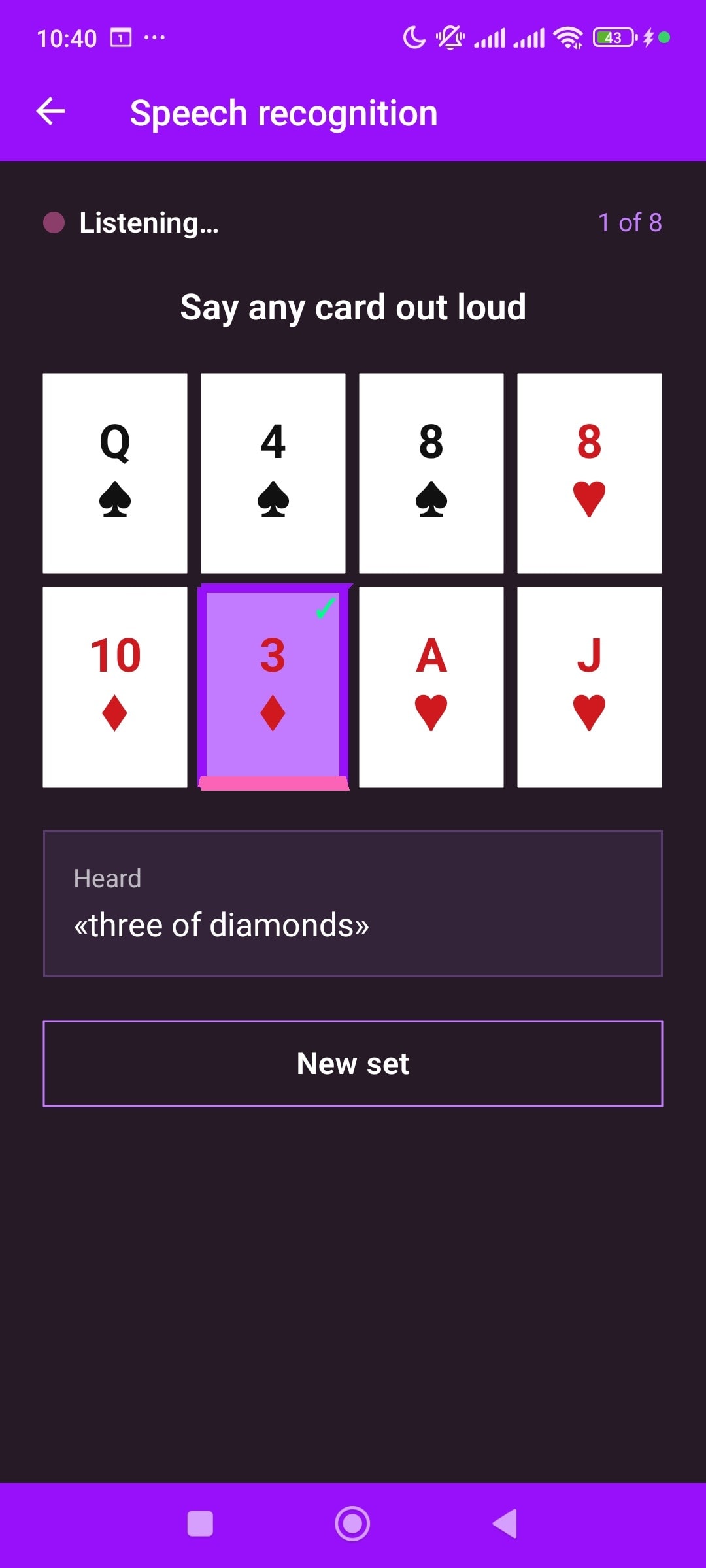
8 numbers or 8 cards appear. Say them out loud in any order: each recognized item gets a check mark, and the top shows how many have been recognized. The “Heard” field shows what the phone heard.
“New set” shows other numbers or cards.
The first time, the app asks for access to the microphone: allow it.
3Voice-over
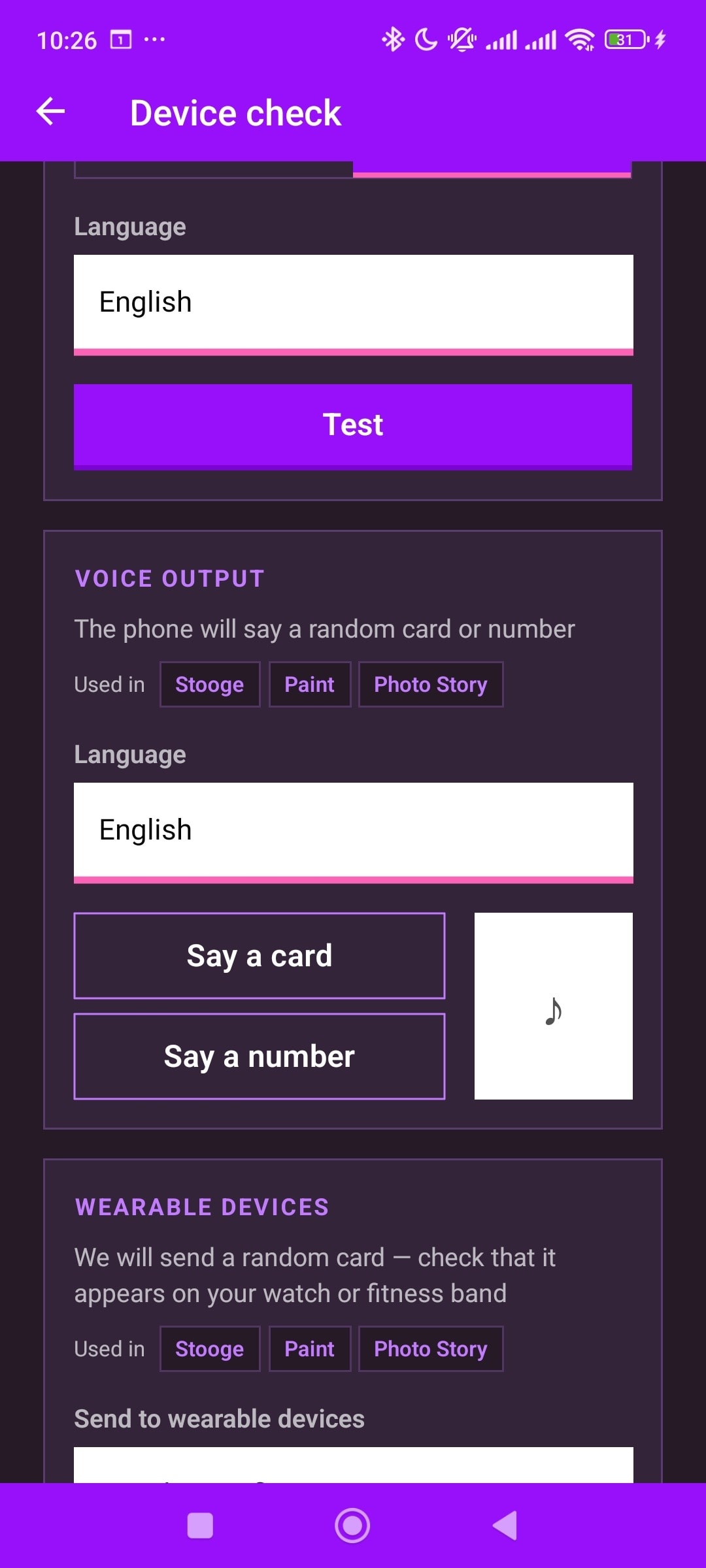
Needed if the result comes to your earpiece. Connect the earpiece, choose a language and tap “Say a card” or “Say a number”. The phone says a random card or number and shows what it said.
On Android:
if there is no voice for the language, you will see “This language is not installed on the device” and an “Add language” button;
if there is no text-to-speech engine, you will see “No text-to-speech engine found” and an “Install” button.
4Watches and fitness bands
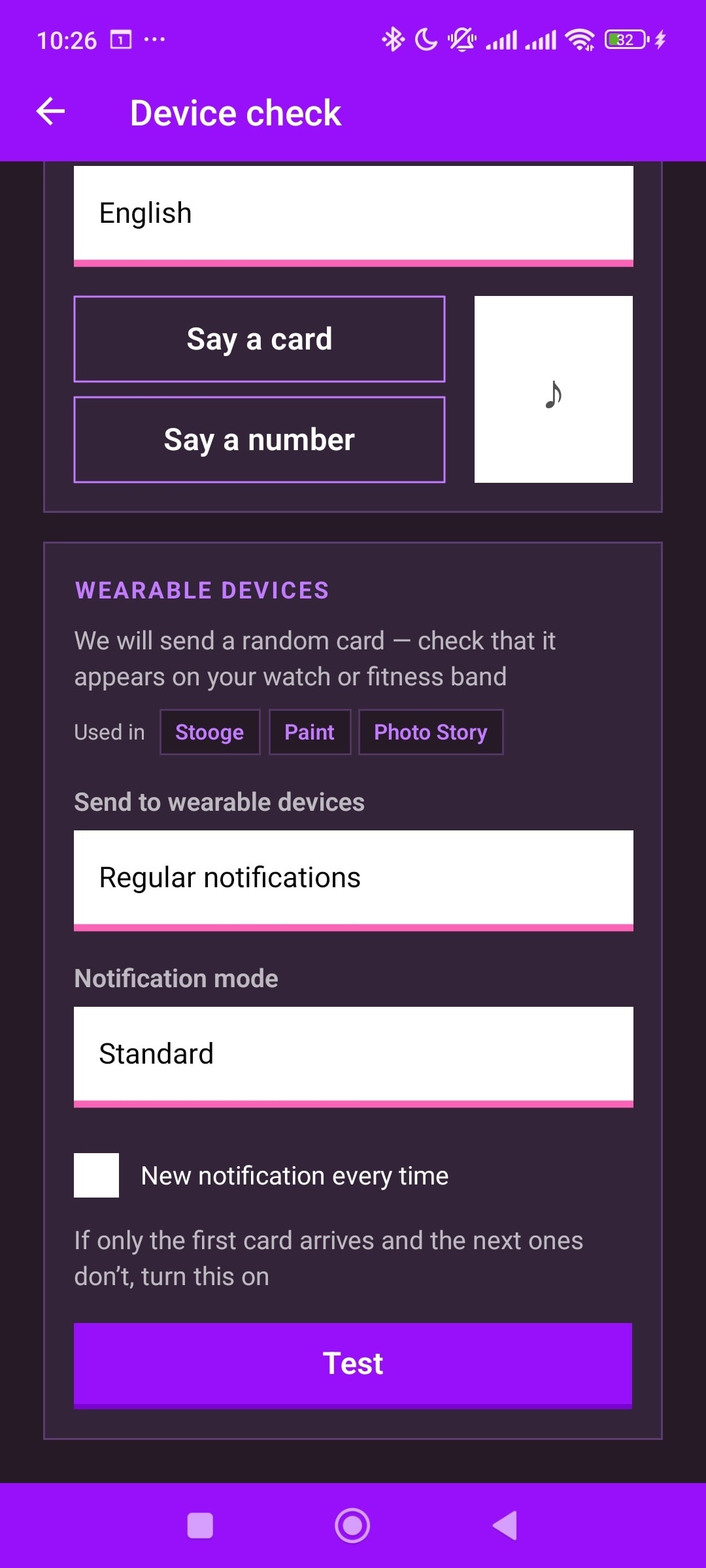
During a trick, the result can come to a watch or fitness band. Here you can check that it gets there.
In the “Send to wearable devices” field, choose where the result goes:
“Wear OS app”, on iPhone “Apple Watch app”. For watches you can install Kouzlo.app on. The result goes to the app on the watch, and it shows more there, for example the spectator’s actual drawing in Paint.
“Regular notifications”, on Android and iPhone. For all other watches and fitness bands: the result arrives as a notification from Kouzlo.app, like a message from a messenger. Any watch or band that receives notifications from the phone will show it.
Tap “Test”. The app sends a random card, for example “6♠”. Check whether it appears on the watch.
The option you choose is saved, and the tricks will send the result the same way.
The watch app
Kouzlo.app is available for Apple Watch and Wear OS watches (Samsung Galaxy Watch, Google Pixel Watch, OnePlus Watch 3 and others).
Apple Watch: the app is installed on the watch together with Kouzlo.app on your iPhone. If it isn’t on the watch, open the Watch app on your iPhone and install Kouzlo.app from the list of available apps.
Wear OS: install Kouzlo.app on the watch from Google Play, on the watch itself or from your phone, by choosing the watch on the app’s page.
Before the test, make sure the watch is connected to the phone, and open Kouzlo.app on the watch: the card will appear in the app.
Regular notification settings
If “Regular notifications” is selected, “New notification every time” appears, and on Android also “Notification mode”.
“Notification mode” (Android only):
“Standard”: the phone shows only an icon in the status bar.
“Invisible”: the phone shows nothing.
Start with “Standard”: every watch and fitness band receives it. Choose “Invisible” only if you have checked that your watch receives it.
“New notification every time”: turn it on if the watch receives only the first card and not the following ones. To check this, tap “Test” several times.
If notifications from Kouzlo.app are turned off in the system, instead of the “Test” button you will see “Notifications are turned off in system settings” and a “Go to settings” button. Tap it and allow notifications.